
Complete User Guide — Everything you need to track, analyse, and compare swimmer performance.
User Guide · 2026 Edition
1. App Overview
SwimDad is a performance tracking app for competitive swimmers. It connects to external services — such as Swimrankings.net and Masters Swimming Ontario — to automatically download meet results, personal bests, and qualifying standards, then presents them in an easy-to-navigate interface.
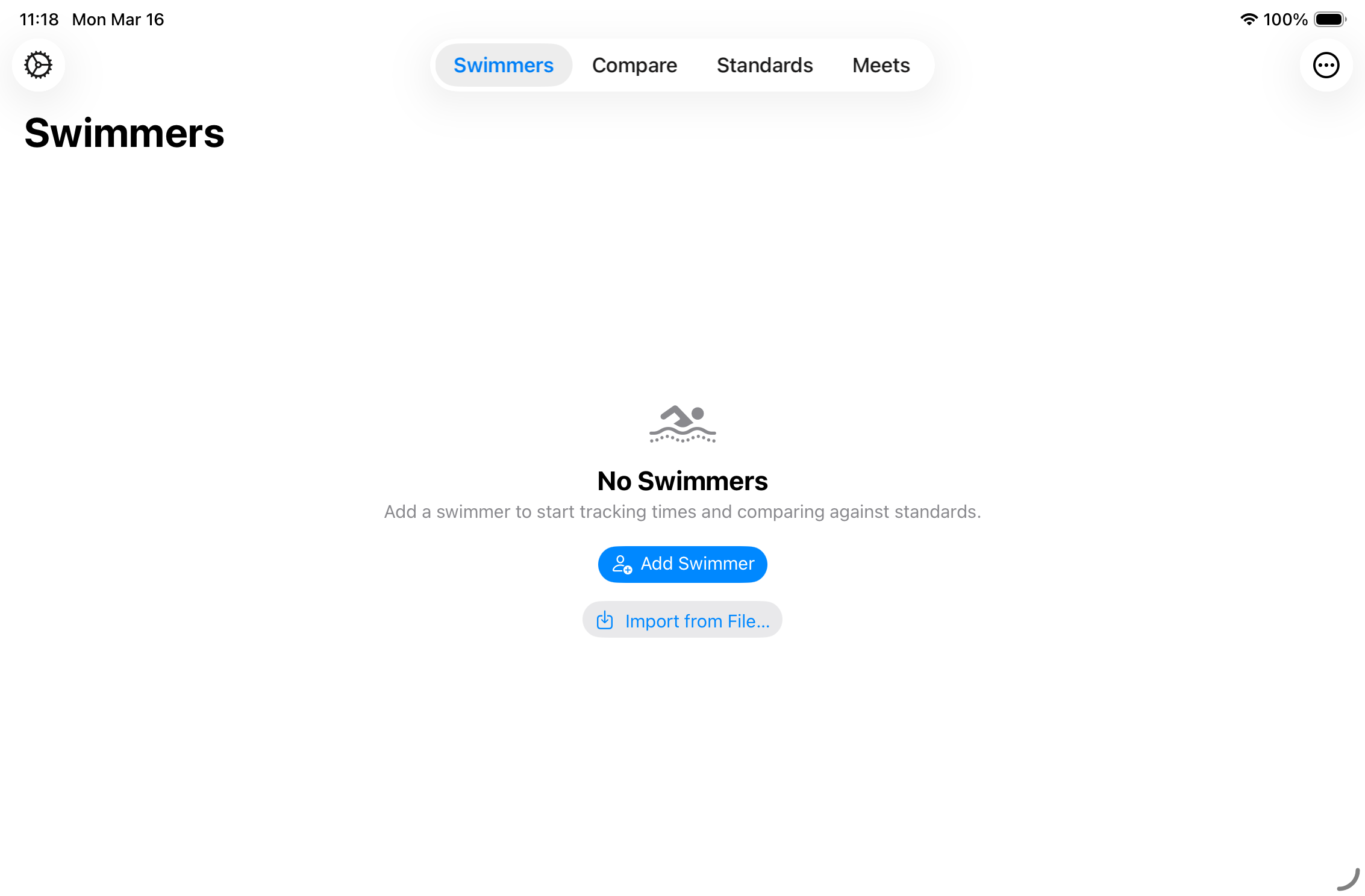
The main tab bar at the bottom of the screen gives access to all four areas of the app.
The app is organised into four tabs:
| Tab | Icon | Purpose |
|---|---|---|
| Swimmers | 👥 | Manage your roster, view profiles, times, charts, and maps. |
| Compare | ⇄ | Side-by-side comparison of multiple swimmers’ best times. |
| Standards | 📋 | Browse and download qualifying standard times for competitions. |
| Meets | 📅 | Browse every meet, filter by location or swimmer, review results. |
A Settings screen is accessible from the top-left gear icon in the Swimmers tab.
2. Swimmers Tab
2.1 Swimmer List
The Swimmers tab is the starting point for the app. It displays your complete roster of tracked swimmers sorted alphabetically by last name.
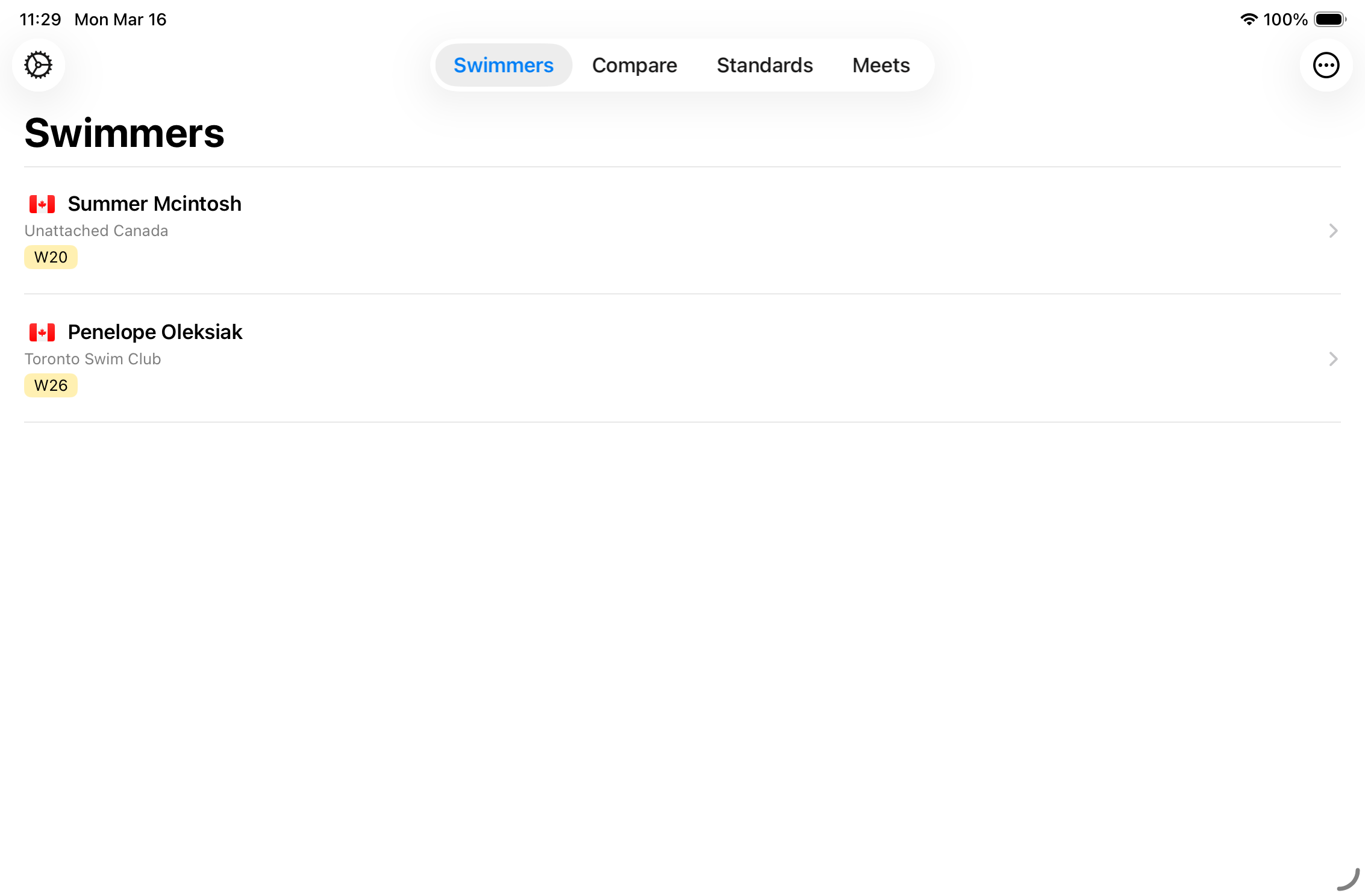
The swimmer list. Each row shows the country flag, swimmer name, club affiliation, and age category.
Each Swimmer Row Shows
- Country flag — the swimmer’s registered country.
- Full name — last name, first name.
- Club — the club or team associated with the swimmer.
- Age category — calculated age group (displayed with a subtle yellow background when only the birth year is known, rather than a full birth date).
- Standard set icon — shown if a default qualifying standard set has been assigned to this swimmer.
- Loading spinner — appears on the right side of a row while times are being fetched for that swimmer.
Tapping a Row
Tapping any swimmer row opens the Swimmer Profile screen for that swimmer.
Swipe Actions
- Swipe left → Delete (red button) — permanently removes the swimmer and all associated times from the app.
- Swipe left → Edit (blue button) — opens the Edit Swimmer sheet.
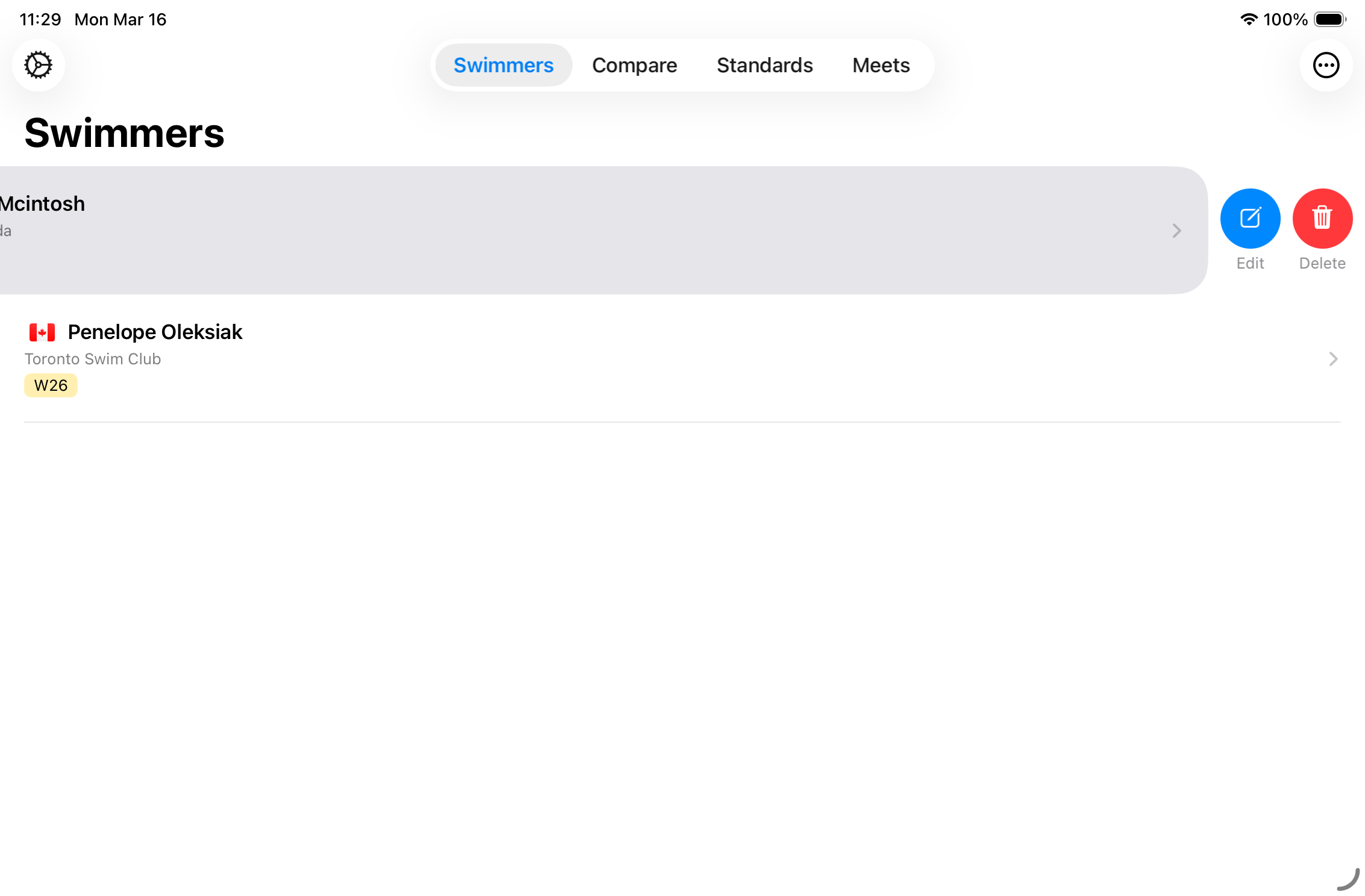
Swipe left on any swimmer row to reveal the Edit and Delete actions.
Toolbar — Top Right Menu (…)
- Add Swimmer — opens the Add Swimmers search sheet.
- Export… — opens the export picker to share swimmer data as a
.sdadfile. (Disabled when the roster is empty.) - Import… — opens the system file picker to import a
.sdadfile.
Toolbar — Top Left (Settings Gear)
Tapping the gear icon (⚙) opens the Settings screen.
Pull-to-Refresh
Pull down on the swimmer list to trigger a data refresh. A confirmation dialog appears with two options:
- New meets only — downloads meets that have not yet been imported. This is the fastest option for routine updates.
- Reload all meets — wipes all existing meet data for every swimmer and re-downloads everything from scratch. Use this only when you suspect corrupted or missing data.
Empty State
When no swimmers have been added yet, the screen shows a welcome state with two action buttons: Add Swimmer and Import from File….
2.2 Adding Swimmers
Tap the … menu in the top-right corner and choose Add Swimmer to open the search sheet.

The Add Swimmers search form. Fill in the fields and the app searches all enabled services automatically.
Search Form
- Last Name — required to begin a search.
- First Name — optional, but recommended to narrow results.
- Gender — picker with options: All, Women, Men.
- Country — searchable list of countries with flags. Defaults to All.
The search runs automatically about 400 ms after you stop typing — there is no separate search button.
Search Results
Results from all enabled swimmer-data services are merged and grouped by name. Each group shows:
- Swimmer name (group header) — with a count of matching entries across services.
- Service badge — colour-coded indicator showing which service returned this entry.
- Club and country — as reported by the service.
- “In roster” label — if this swimmer is already tracked in the app.
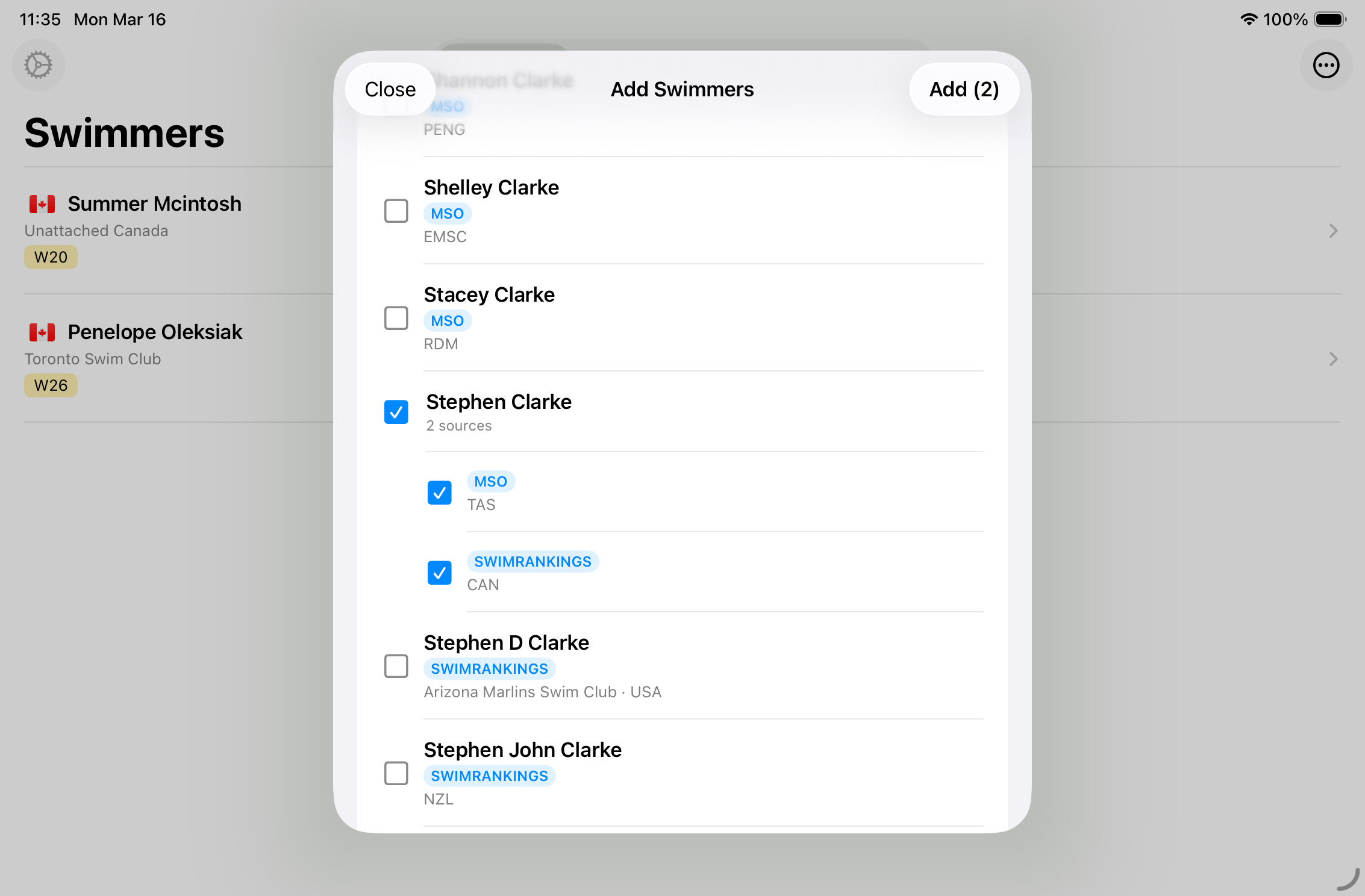
Search results grouped by name. Tap a group header checkbox to select all entries for that swimmer, or tap individual entries to select specific ones.
Selecting Swimmers
Tap the checkbox next to a name group to select all entries for that swimmer, or expand and select individual entries. The Add (n) button in the top-right corner activates once at least one entry is selected.
Handling Duplicates
If an added swimmer matches an existing roster entry, a Merge Confirmation sheet appears, comparing the existing and incoming records. You can choose to:
- Merge — combine into a single swimmer record.
- Create new — add as a separate, independent record.
If specific fields (such as name spelling or club) conflict between records, a Field Resolution sheet allows you to choose which value to keep field by field.
2.3 Editing a Swimmer
Open the Edit Swimmer sheet by either swiping left on a swimmer in the list and tapping Edit, or by tapping the … menu in the Swimmer Profile and selecting Edit Swimmer.
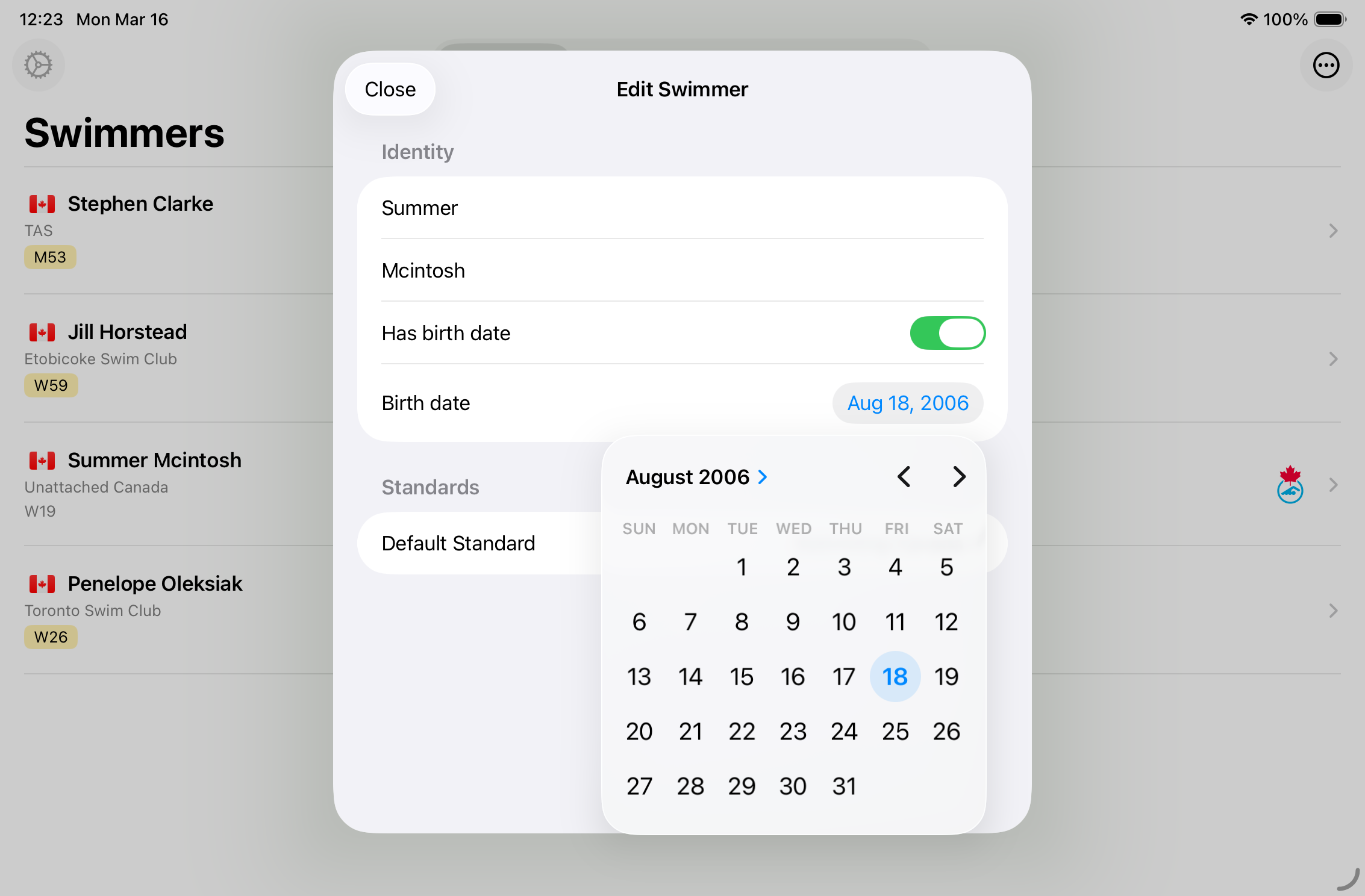
The Edit Swimmer sheet. Changes are saved automatically as you type.
Identity Section
- First Name — edit the swimmer’s first name.
- Last Name — edit the swimmer’s last name.
- Has birth date — toggle on to associate a full date of birth. When off, only the birth year (from the service) is used for age calculations.
- Birth date — a date picker that appears when Has birth date is enabled. Scroll to the correct date; the selection is saved as soon as you stop scrolling.
Standards Section
- Default Standard — select which qualifying standard set (if any) should be used as the default when viewing this swimmer’s times and charts. Choose None to remove the association.
Tap Close in the toolbar to dismiss the sheet. All changes are persisted automatically.
2.4 Swimmer Profile
Tapping a swimmer in the roster opens their profile — a central hub for all data associated with that swimmer.
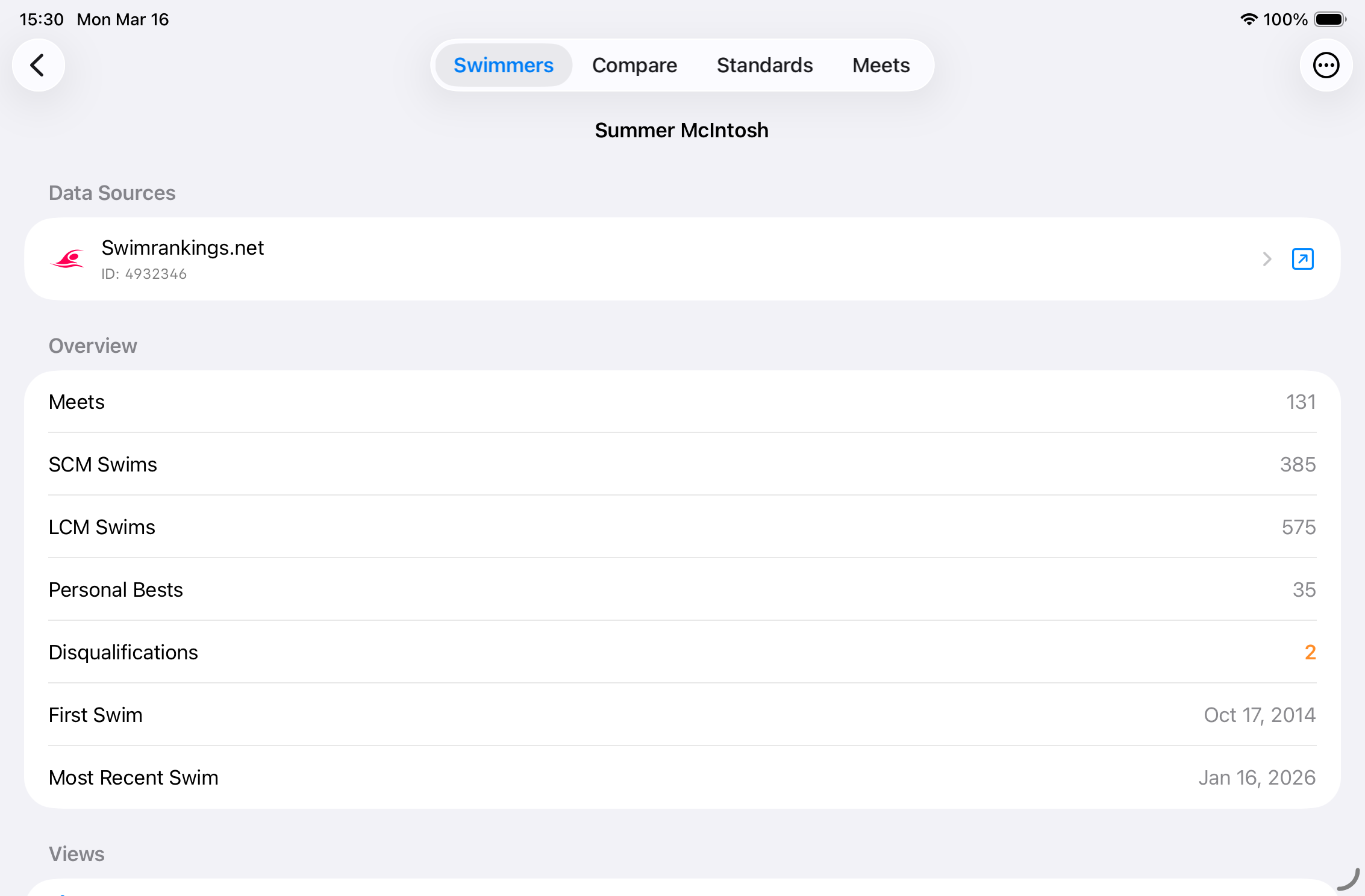
The Swimmer Profile screen. The Data Sources section shows which services are linked and when they were last refreshed.
Data Sources Section
Lists every external service linked to this swimmer. Each row shows:
- Service icon and name — tap the row to open a description of that service.
- Swimmer ID — the service’s internal identifier for this swimmer.
- Last refreshed — relative time of the most recent successful data fetch.
- External link button (↗) — opens the swimmer’s page on the service’s own website in your browser.
Overview Section
| Stat | Description |
|---|---|
| Meets | Total number of meets with recorded times. |
| SCM Swims | Total individual swims in short-course (25 m) pools. |
| LCM Swims | Total individual swims in long-course (50 m) pools. |
| Personal Bests | Total number of unique event/course personal best records. |
| Disqualifications | Total DQs (only shown if greater than zero). |
| No-Shows | Total DNS/NS entries (only shown if greater than zero). |
| First Swim | Date of the earliest recorded meet entry. |
| Most Recent Swim | Date of the most recent recorded meet entry. |
Navigation Links
- All Times — the complete list of time entries with filters. See § 2.5.
- Meets — all meets attended by this swimmer. See § 5.1.
- Meet Map — a map showing all meet locations. See § 2.11.
- Personal Bests — PB grid by event and course. See § 2.6.
- Split Consistency — split analysis per event. See § 2.7.
- Progression Charts — time-over-date charts. See § 2.8.
- Disqualifications — DQ breakdown (only shown if DQs exist). See § 2.9.
Toolbar Menu (…)
- Edit Swimmer — opens the Edit Swimmer sheet.
- Export Times — generates a tab-separated (TSV) export of all times and shares it via the system share sheet.
- Import Times… — opens a file picker to import a
.sdadfile for this swimmer. - Reload All Times — wipes and re-downloads all meet data for this swimmer. A confirmation dialog is shown before any data is deleted.
Pull-to-Refresh
Pull down to fetch new meets and times from all linked services. A progress overlay shows how many meets are being fetched. If a service requires verification or login, the appropriate prompt appears automatically.
2.5 All Times
Accessed from the Swimmer Profile via All Times. This screen displays every recorded time entry for the swimmer.
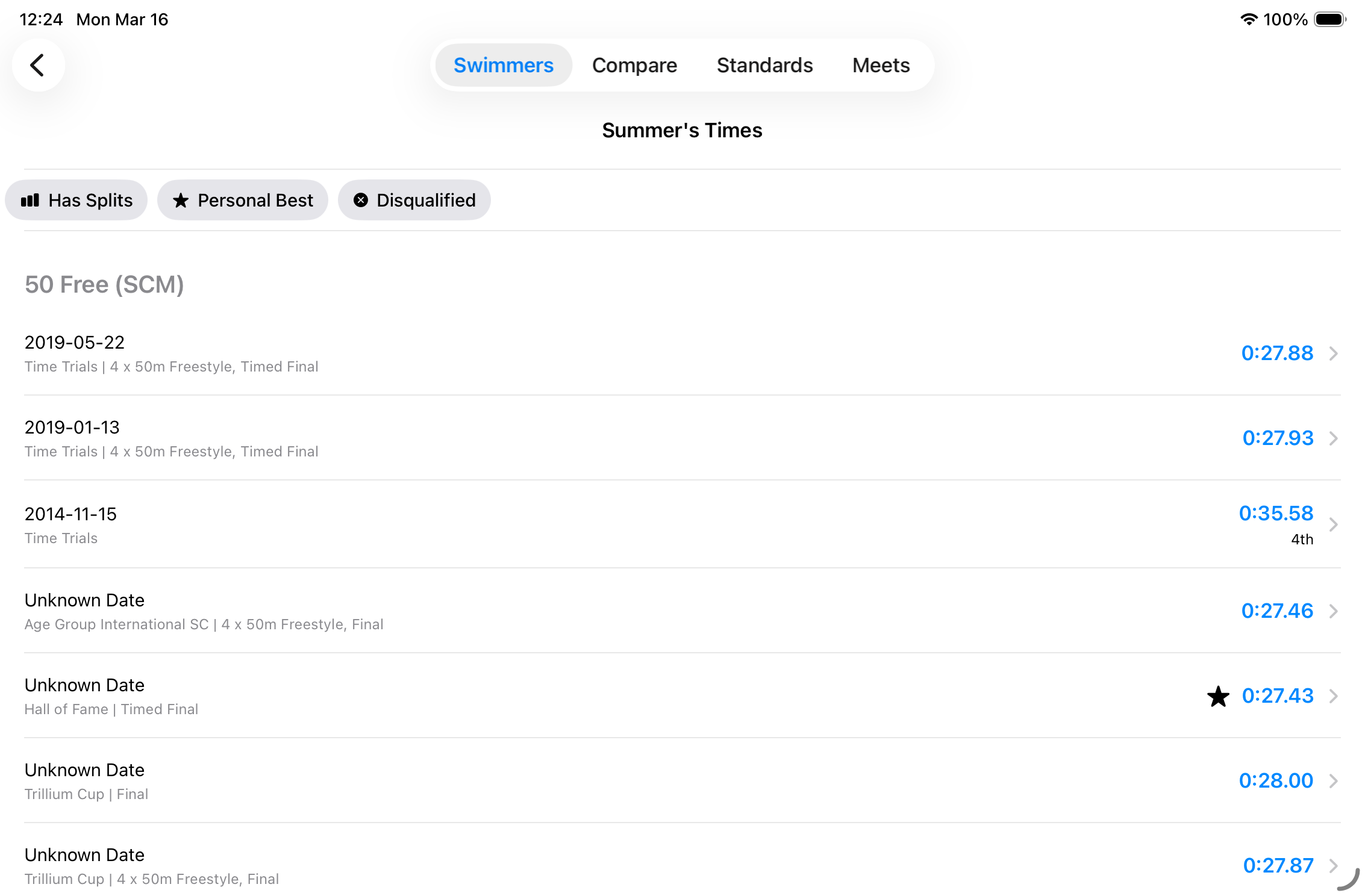
The All Times screen. Filter chips at the top let you narrow down to specific result types. Times are grouped by event.
Filter Chips
A horizontal scrolling row of chips lets you filter the list. Tap a chip to toggle it on or off. Multiple filters can be active simultaneously — only entries matching all active filters are shown.
| Filter | Shows entries where… |
|---|---|
| Has Splits | Split-by-lap data is available. |
| Personal Best | The time is the swimmer’s all-time best for that event and course. |
| Disqualified | The result was a disqualification (DQ). |
| No Show | The swimmer was declared a no-show (DNS/NS). |
| DNF | The swimmer did not finish the race. |
| Scratch | The swimmer scratched before the event. |
| False Start | The result was a false start (DFS). |
| Relay | The entry is part of a relay event. |
Time Entry Rows
Entries are grouped by event name in competition order. Within each group, times are shown newest first. Each row displays:
- Date — the date of the meet.
- Meet name and sub-event — the competition name and session or heat.
- Splits icon — a small chart icon appears if split data is recorded for this entry.
- Personal Best star — a gold star (⭐) marks personal best times. If the PB also meets a qualifying standard, a badge shows the standard category.
- Time — displayed in blue for valid times, red for disqualified entries.
- Place badge — a coloured pill showing the finishing place if available.
Tap any row to open the full Time Entry Detail.
Swipe to Delete
Swipe left on any entry and tap Delete to remove that individual time entry.
Empty State
If filters are active and no entries match, a Clear Filters button is shown. If no filters are active and the swimmer has no times at all, a Fetch Times button triggers a data refresh.
Pull-to-Refresh
Pull down to fetch new times from all linked services.
2.6 Personal Bests
Accessed from the Swimmer Profile via Personal Bests. This screen summarises the swimmer’s best recorded time for every event and pool length combination.
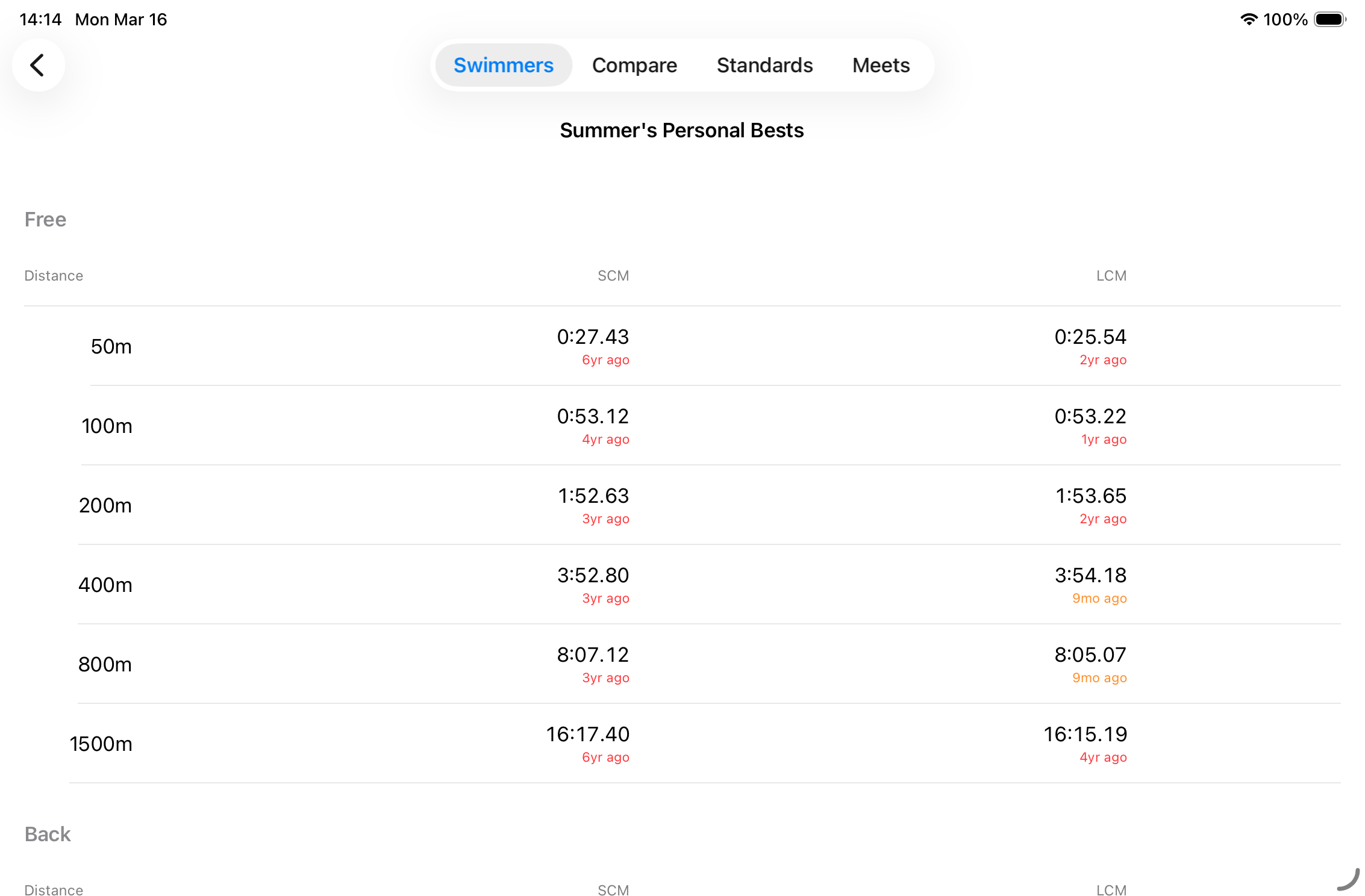
Personal bests organised by stroke. Colour-coded age indicators help identify which records are ripe for improvement.
Layout
Events are grouped by stroke (Freestyle, Backstroke, Breaststroke, Butterfly, Individual Medley). Each row shows the distance and two time columns:
- SCM — Short Course Metres (25 m pool) personal best.
- LCM — Long Course Metres (50 m pool) personal best, or N/A for distances not contested long-course.
Age of PB (Colour Coding)
The small text beneath each time shows how long ago the PB was set, colour-coded to help identify targets:
- Gray — set within the last 6 months. Recently achieved.
- Orange — set 6–12 months ago. Worth targeting at an upcoming meet.
- Red — set more than a year ago. Should be achievable to improve.
2.7 Split Consistency
Accessed from the Swimmer Profile via Split Consistency. For events where split data has been recorded, this screen shows how consistently the swimmer paces each event.
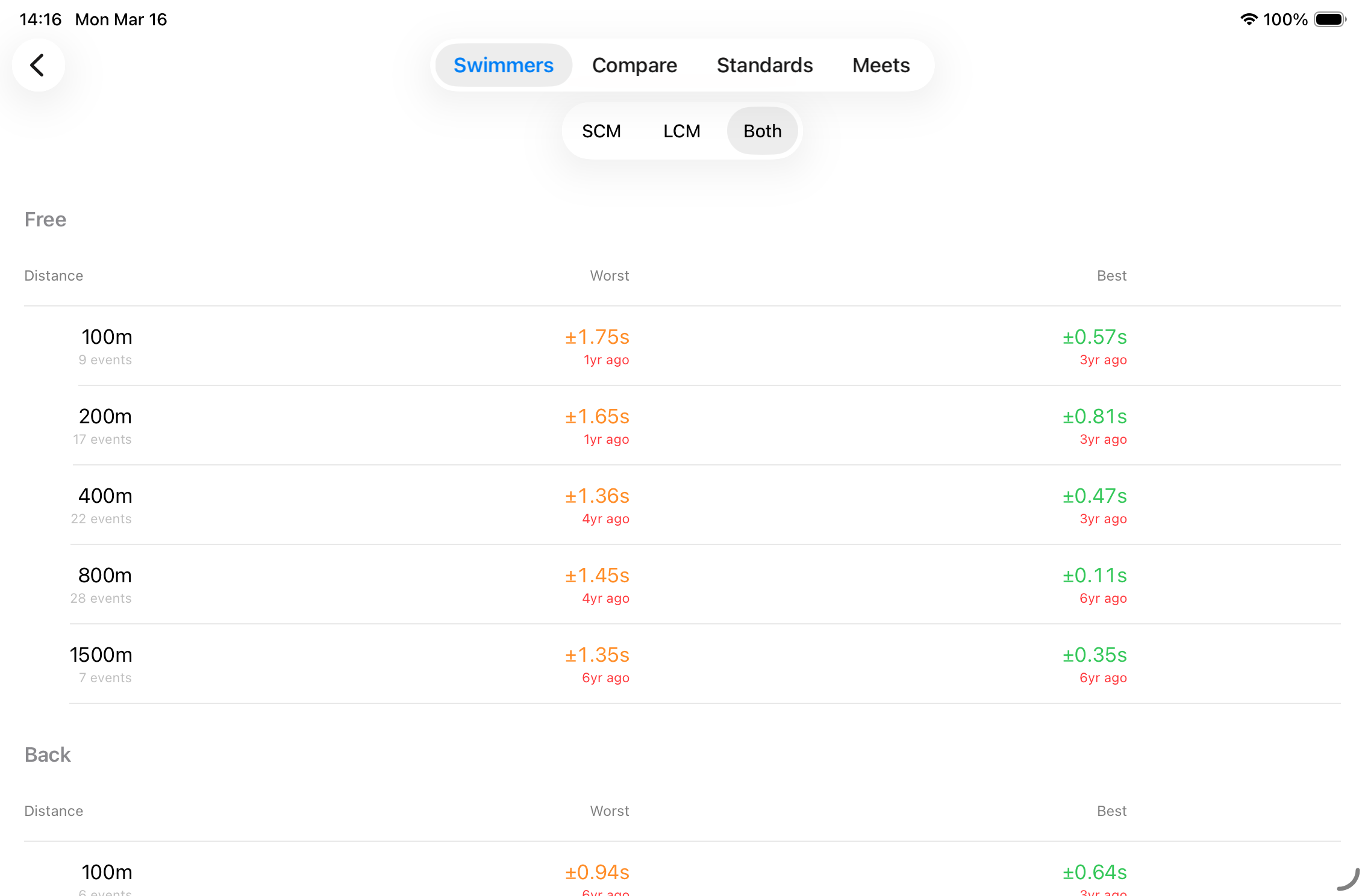
Split Consistency view. Lower standard deviation (±Xs) means more consistent pacing. Best and Worst are shown side by side for easy comparison.
Layout
Like Personal Bests, events are grouped by stroke. Each row shows:
- Distance — the event distance.
- Count — how many times this event has been swum with splits recorded.
- Best consistency — the race with the lowest lap-time standard deviation (most even pacing), shown in green.
- Worst consistency — the race with the highest lap-time standard deviation, shown in orange.
Each consistency value is displayed as ± X.XX s, plus the date the race was swum.
Course Filter
A segmented control at the top of the screen lets you filter between SCM, LCM, or Both.
2.8 Progression Charts
Accessed from the Swimmer Profile via Progression Charts. This screen plots a swimmer’s times for a selected event over time, making it easy to see improvement trends.
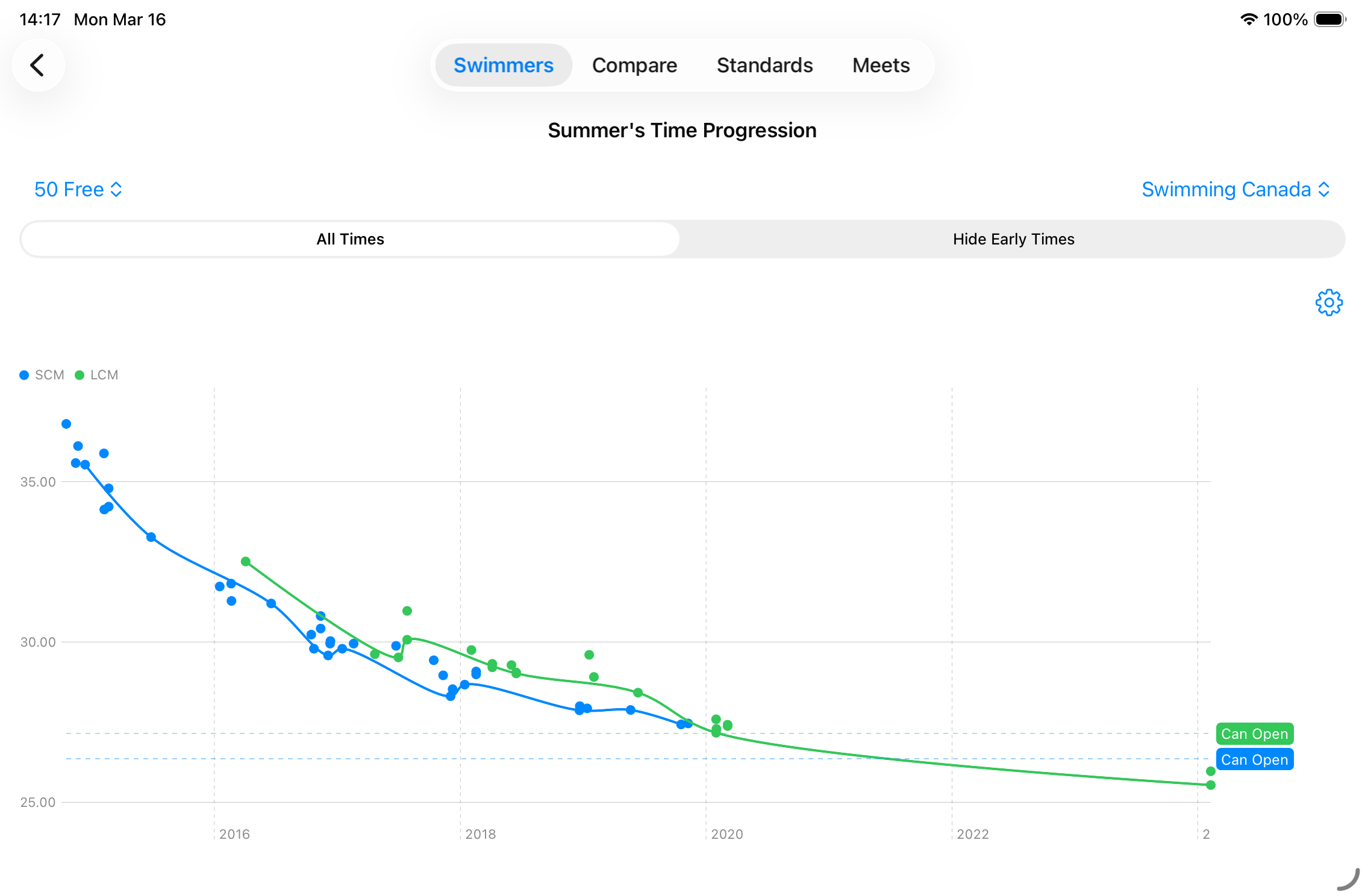
A progression chart for a selected event. Each dot is a race result. The trend line shows the best time per period. Dashed lines show qualifying standards.
Controls
- Event Picker — select the event to chart (e.g., 100 m Backstroke).
- Standards Picker — optionally overlay qualifying standard lines from a selected standard set. Choose None to hide standards.
- Filter Mode (segmented: All / Filtered) — Filtered excludes early-season times that may not reflect peak performance.
- Settings Menu (gear icon):
- Toggle SCM (short-course) times on/off.
- Toggle LCM (long-course) times on/off.
- Select an Age Group to filter results to times swum in a specific age group.
Reading the Chart
- Dots — each dot represents a single race. Colour indicates pool length (SCM vs LCM).
- Trend line — shows the best time achieved in each calendar period, connecting dots to visualise improvement.
- Dashed lines — qualifying standard thresholds. Blue dashes = SCM standards; green dashes = LCM standards. Standard names are labelled on the right edge.
Interacting with the Chart
Tap on or near a data point to select it. A detail sheet slides up showing the full Time Entry Detail for that race.
2.9 Disqualifications
This screen is accessible from the Swimmer Profile only when the swimmer has at least one recorded disqualification. It provides a structured breakdown of all DQs.
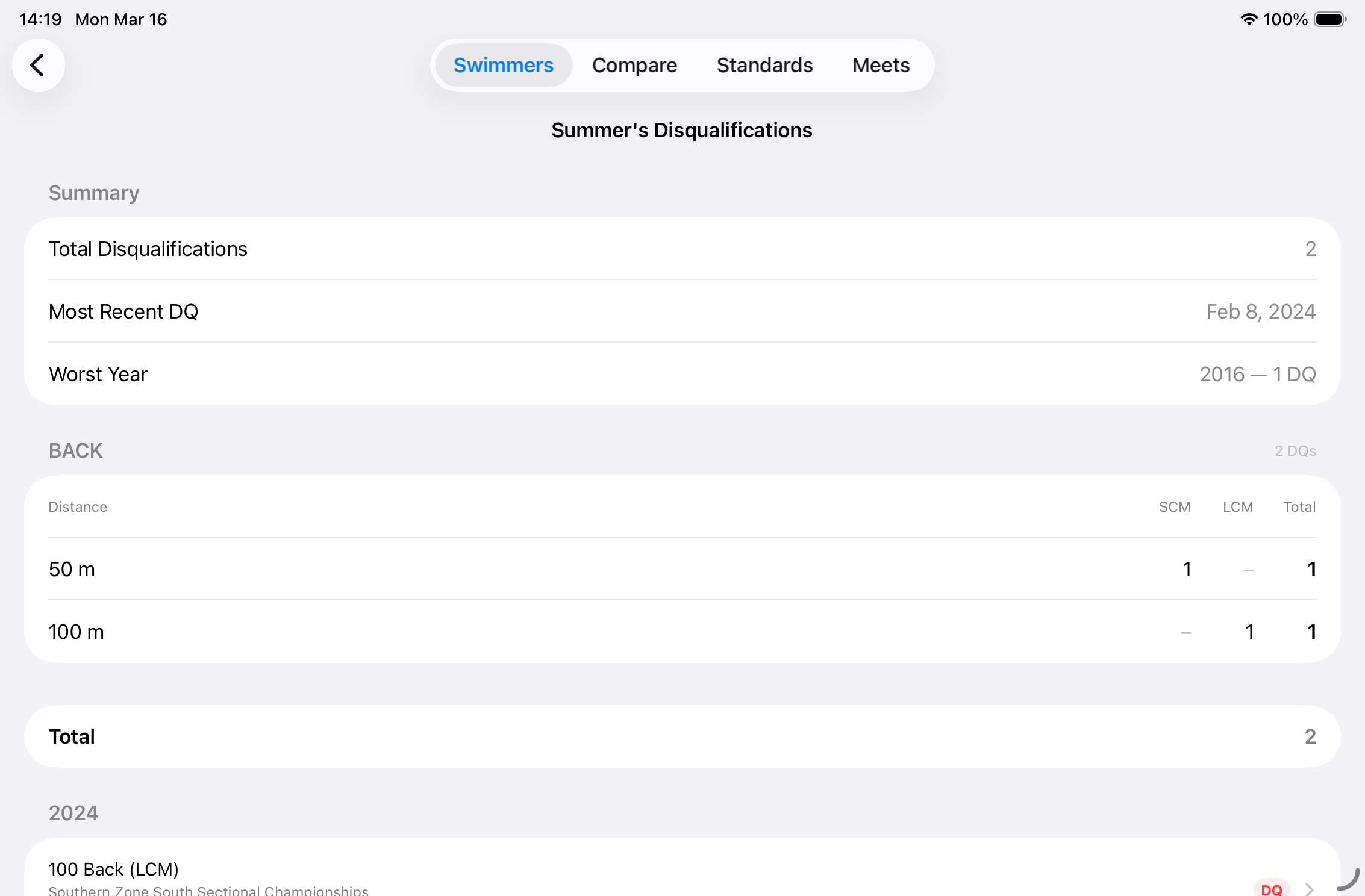
The Disqualifications screen summarises DQs by event, stroke, and year.
Summary Section
- Total disqualifications — all-time DQ count.
- Most recent DQ — date of the last disqualification.
- Worst year — the calendar year with the most DQs.
Breakdown Table
A table organised by stroke shows DQ counts broken down by distance, pool course (SCM / LCM), and total. This makes it easy to identify which events are most problematic.
Individual Entries
Below the summary table, individual DQ entries are grouped by year. Tap any entry to open the full Time Entry Detail.
2.10 Time Entry Detail
Accessed by tapping any time entry row from All Times, Meets, or Disqualifications. This screen shows everything recorded for a single race.
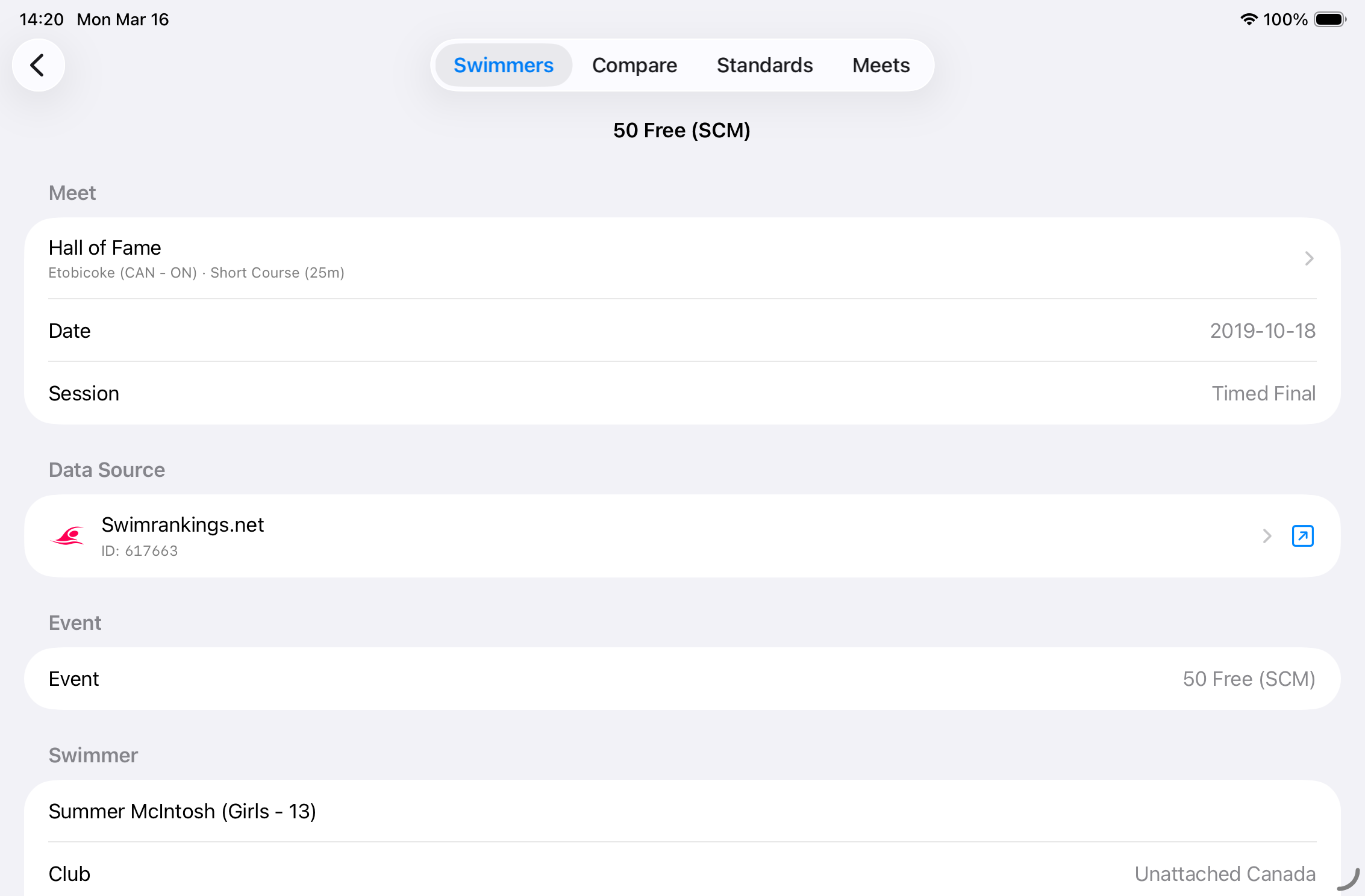
A complete time entry with splits. The splits grid highlights the fastest and slowest laps in green and red.
Meet Section
- Meet name (tappable link to the Meet Detail screen).
- Date and session / sub-event.
Data Source Section
Shows the service this result came from, with an external link button (↗) to view the meet on the source website.
Event Section
Event name and relay indicator (if applicable).
Swimmer Section
Swimmer name, age category, club, gender, and age at the time of the meet.
Result Section
- Status — shown for non-standard results: DQ, DNS, DNF, SCR (scratch), DFS (false start), NT (no time).
- Seed time — the swimmer’s declared entry time (with the date it was set, if known).
- Final time — the recorded finish time. A green indicator (↑) shows improvement over the seed; red (↓) shows regression.
- Personal Best badge — shown if this time is the swimmer’s all-time best for this event and course.
- Place — finishing position (1st, 2nd, 3rd, …) if available.
Standards Achieved Sections
- Standard Achieved at Meet — the qualifying standard the swimmer met at this specific meet, if any. Shows the standard category name, time threshold, age group, and the name of the standard set.
- Current Standard Achieved — shown when the entry is also the swimmer’s personal best. Reflects the standard this PB currently qualifies for.
Splits Section
If split data is available, a grid shows each lap:
- Distance — cumulative distance at the end of each lap.
- Lap time — time for that individual lap. Green = fastest lap; Red = slowest lap.
- Diff — difference from the previous lap time (positive = slower, negative = faster).
- Cumulative time — total elapsed time at the end of that lap.
A summary row at the bottom shows the average lap time and standard deviation.
Notes Section
A free-form text area for your own annotations about this entry.
2.11 Meet Map
Accessed from the Swimmer Profile via Meet Map. Shows the geographic locations of all meets the swimmer has attended that have a resolved location.

Meet Map showing geocoded meet locations as pins. Pin colour indicates location confidence.
Map Pins
- Blue pin — high-confidence geocoded location.
- Orange pin — medium-confidence location (review recommended).
- Red pin — low-confidence location (may be inaccurate).
Tap a Pin
Tapping a pin opens a detail sheet showing the meet name, raw location string, geocoded city, and date. A View Meet Details link navigates to the full Meet Detail screen.
2.12 Importing & Exporting
Exporting Swimmers
From the Swimmers list toolbar, tap … → Export…. A selection screen lets you choose which swimmers (and whether to include times) to include in the export. The resulting .sdad file can be shared via AirDrop, Mail, Files, or any other share destination.
Importing Swimmers
Tap … → Import… in the toolbar, or tap Import from File… in the empty state. Select a .sdad file from the system file picker. An import selection sheet lets you review what will be imported before confirming.
Exporting a Single Swimmer’s Times
From the Swimmer Profile menu, tap Export Times to generate a tab-separated file of all times and share it.
.sdad format preserves all swimmer data, times, meets, splits, and settings. It is ideal for transferring data between devices or sharing with another SwimDad user.3. Compare Tab
The Compare tab lets you view two or more swimmers’ best times side-by-side in a scrollable table. It is ideal for coaching analysis or identifying competitive gaps.
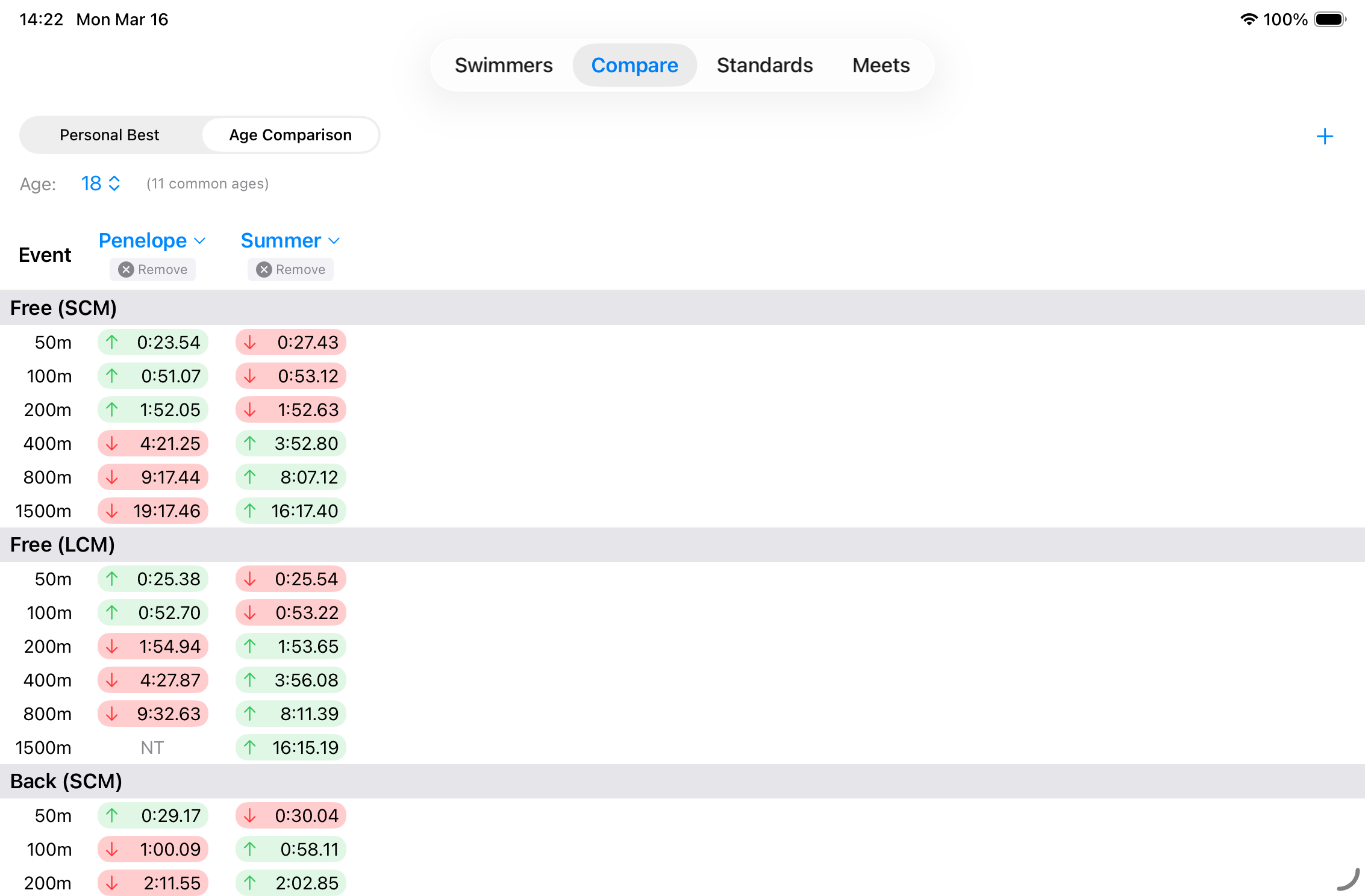
The Compare tab. Each swimmer occupies a column, and the fastest time for each event is highlighted in green.
Comparison Mode
A segmented control at the top switches between two modes:
- Event Comparison — shows each swimmer’s overall personal best for every event and course, regardless of when it was achieved.
- Age Comparison — shows the best time each swimmer achieved at a selected age, allowing fair comparison between swimmers at the same stage of development. An age selector appears when this mode is active.
Adding and Removing Swimmers
- Tap the + button to add the next swimmer from your roster to the comparison. Continue tapping to add more.
- Tap the ✕ Remove button beneath a swimmer’s name to remove them from the comparison.
- Tap a swimmer’s name in the column header to open a dropdown menu and swap them out for a different swimmer.
Reading the Table
Events are grouped by stroke category. For each event row:
- Green ↑ — this swimmer is the fastest in the current comparison for this event.
- Red ↓ — this swimmer is the slowest.
- Blue — intermediate time (between fastest and slowest).
- NT — no recorded time for this event.
4. Standards Tab
4.1 Standards Browser
The Standards tab lets you browse qualifying time standards for competitions. You can select a standard set, filter by swimmer, and instantly see whether the swimmer’s personal bests meet each threshold.
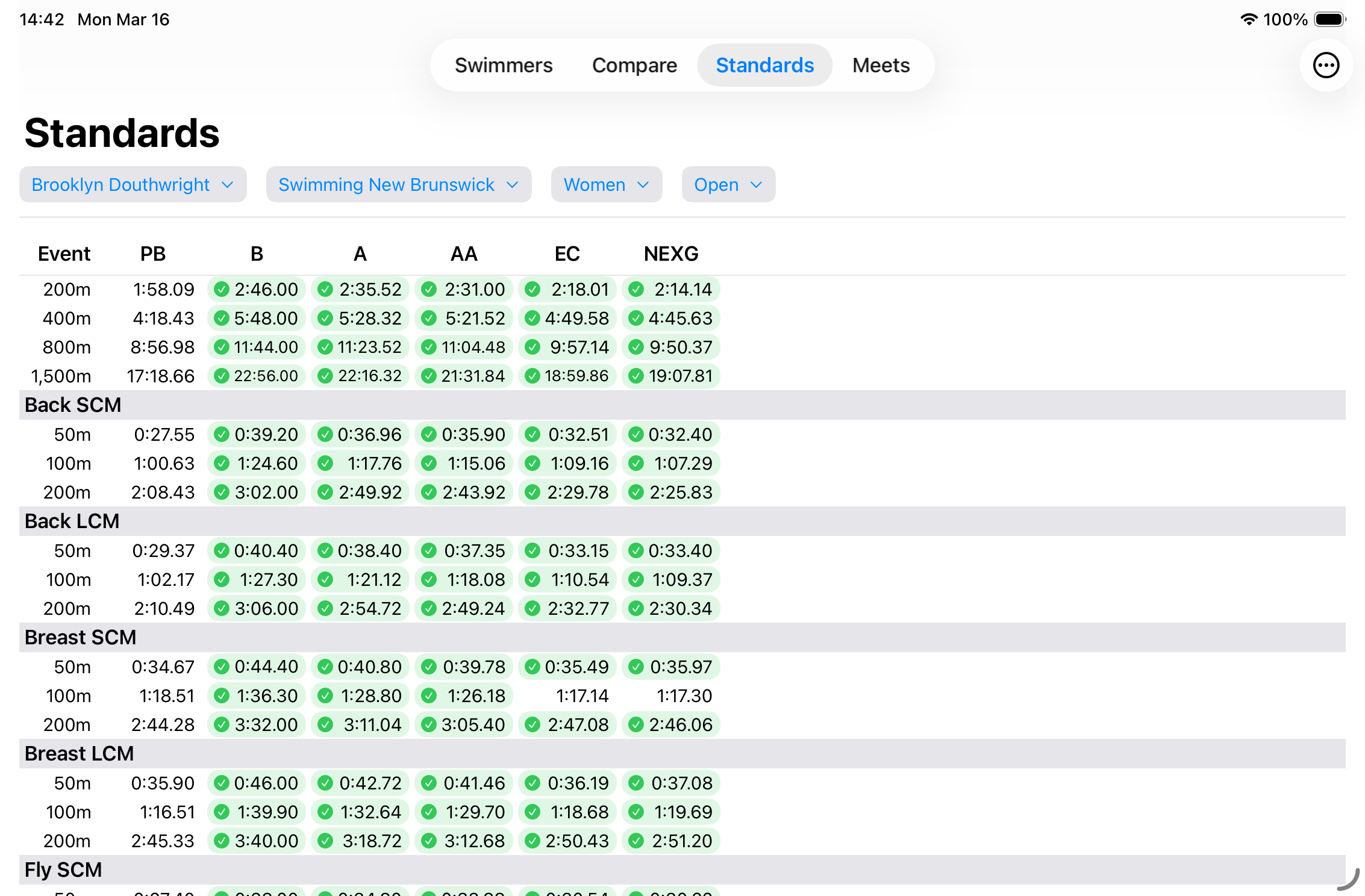
The Standards browser with a swimmer selected. Green checkmarks indicate qualifying times already achieved.
Filter Bar
- Swimmer — select a swimmer (or None) to compare their personal bests against the standards. When a swimmer is selected, a PB column appears showing their best time for each event.
- Standard Set — choose which standard set to display (e.g., Swimming Canada, FNQ, RSÉQ).
- Gender — toggle between Women and Men.
- Age Group — select the age group relevant to the swimmer. Disabled when no set is selected.
Standards Table
Events are grouped by stroke. Columns show qualification times for each standard category in the selected set. When a swimmer is selected:
- The PB column shows the swimmer’s current personal best.
- A green checkmark (✓) in a standard column means the swimmer’s PB meets or beats that standard.
- A plain time means the standard exists but has not been met.
- NT means no time is recorded for that event.
Pull-to-Refresh
Pull down to re-download the selected standard set from the source service.
4.2 Downloading Standard Sets
From the Standards toolbar, tap … → Download Sets… to open the download sheet. Available sets are grouped by country and organisation. Tap a set to begin downloading it.
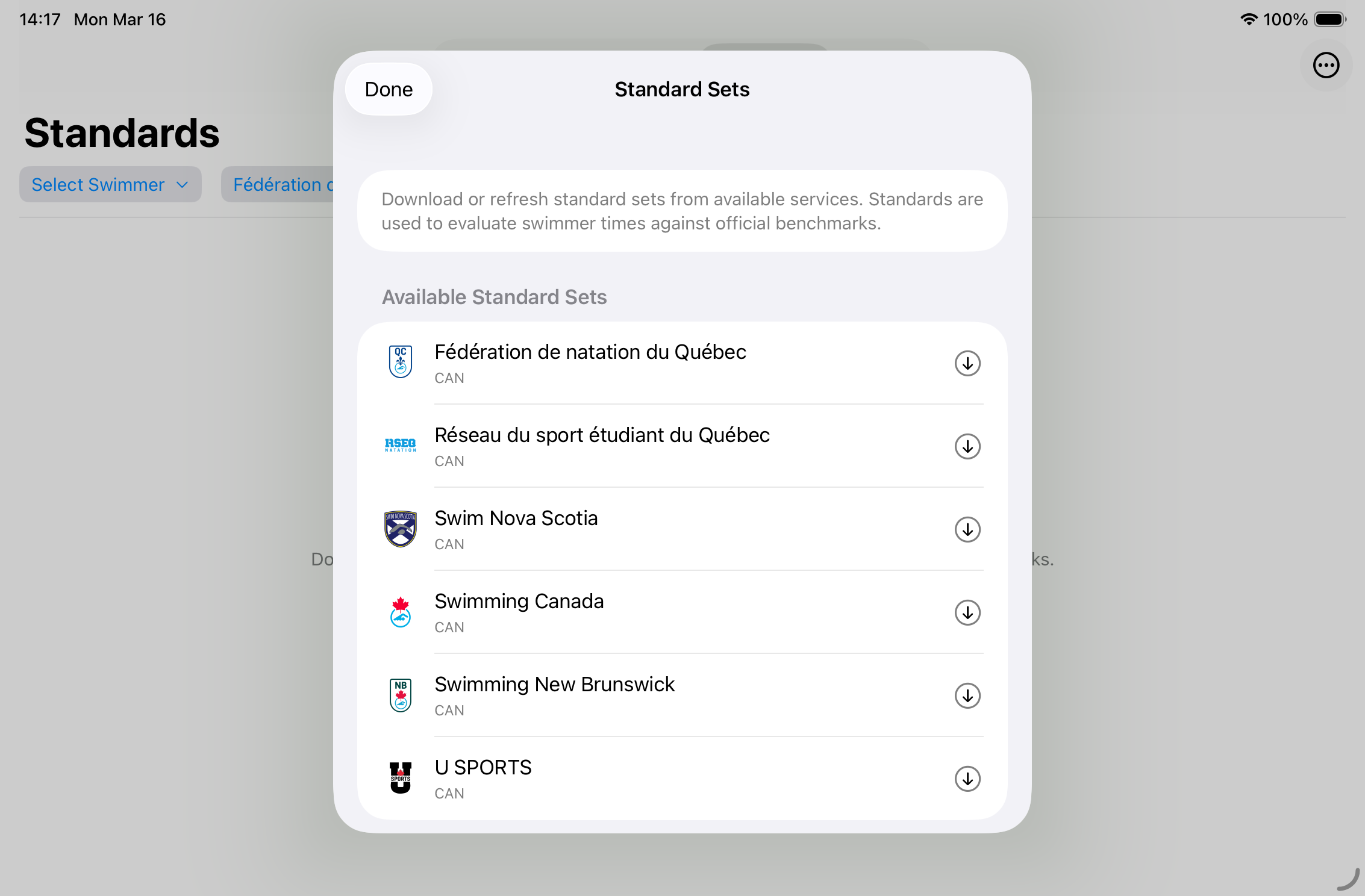
The Download Sets sheet. Tap any entry to download that standard set to your device.
Currently available standard sets include:
- Swimming Canada
- Swim Nova Scotia
- Swimming New Brunswick
- Fédération de natation du Québec (FNQ)
- RSÉQ
- U SPORTS
Reorder Categories
Tap … → Reorder Categories… to drag-and-drop the stroke category order in the standards table to match your preferred layout.
4.3 Importing & Exporting Standards
Exporting
Tap … → Export Sets…, select which sets to include, and share the resulting .sdad file.
Importing
Tap … → Import from File… and select a .sdad file. An import selection sheet lets you confirm what will be imported.
5. Meets Tab
5.1 Meets List
The Meets tab displays all meets recorded across all swimmers in your roster, sorted by date (most recent first).
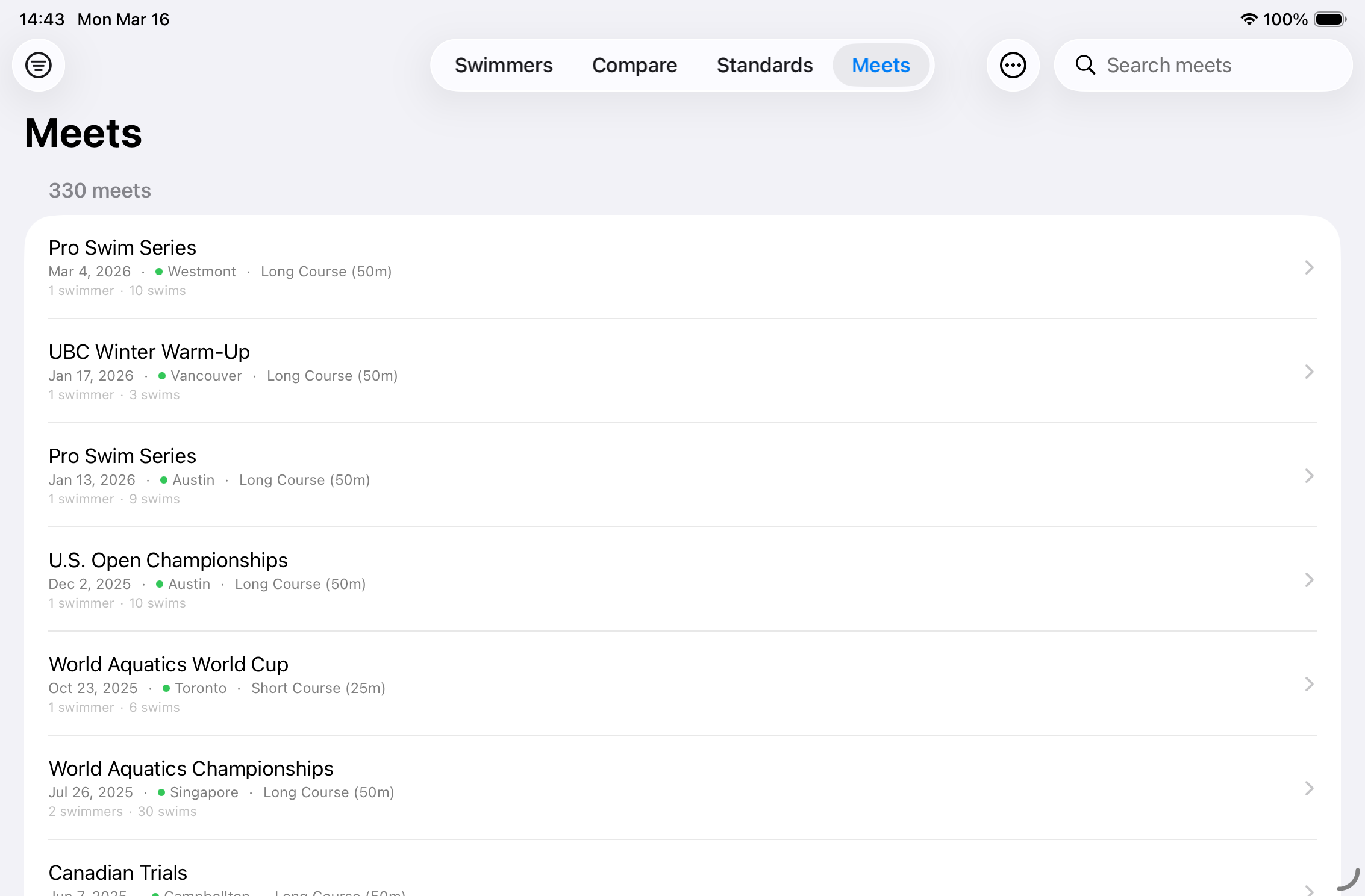
The Meets list. Each row shows the meet name, date, location, pool course, and swimmer / swim counts.
Each Meet Row Shows
- Meet name — the official competition name.
- Date — the meet date in abbreviated format.
- Location confidence dot — a small coloured dot indicates how confident the geocoding of the location is: green = high, orange = medium, red = low.
- City — the geocoded city name, or the raw location string if geocoding has not resolved it.
- Course — SCM (short course) or LCM (long course).
- Swimmer and swim counts — how many tracked swimmers attended and how many total swims are recorded.
- Warning icon — an orange triangle appears if the location has not been confidently resolved and may need review.
Search
A search bar at the top lets you filter the list by meet name or location text.
Filters
Tap the filter icon (funnel) in the toolbar to open the Filters sheet. An active-filter count badge on the icon shows how many filters are in effect.
Available filters:
- Course — SCM, LCM, or both.
- Swimmer — show only meets attended by a specific swimmer.
- Country — filter by the meet’s country.
- Province / State — filter by region (hierarchically filtered by the selected country).
- City — filter by city (hierarchically filtered by country and region).
To clear all filters at once, tap Clear All Filters at the bottom of the Filters sheet, or use … → Reset Filters from the main toolbar.
Toolbar Menu (…)
- Reset Filters — clears all active filters (only shown when filters are active).
- Review Locations — opens a dedicated screen listing all meets with uncertain or unresolved locations so you can correct them.
- Locations & Pools — browse and manage all stored locations and associated pool information.
- Merge Meets — opens a sheet to combine two or more duplicate meet records into one (only available when two or more meets exist).
5.2 Meet Detail
Tap any meet in the list to open its detail screen.
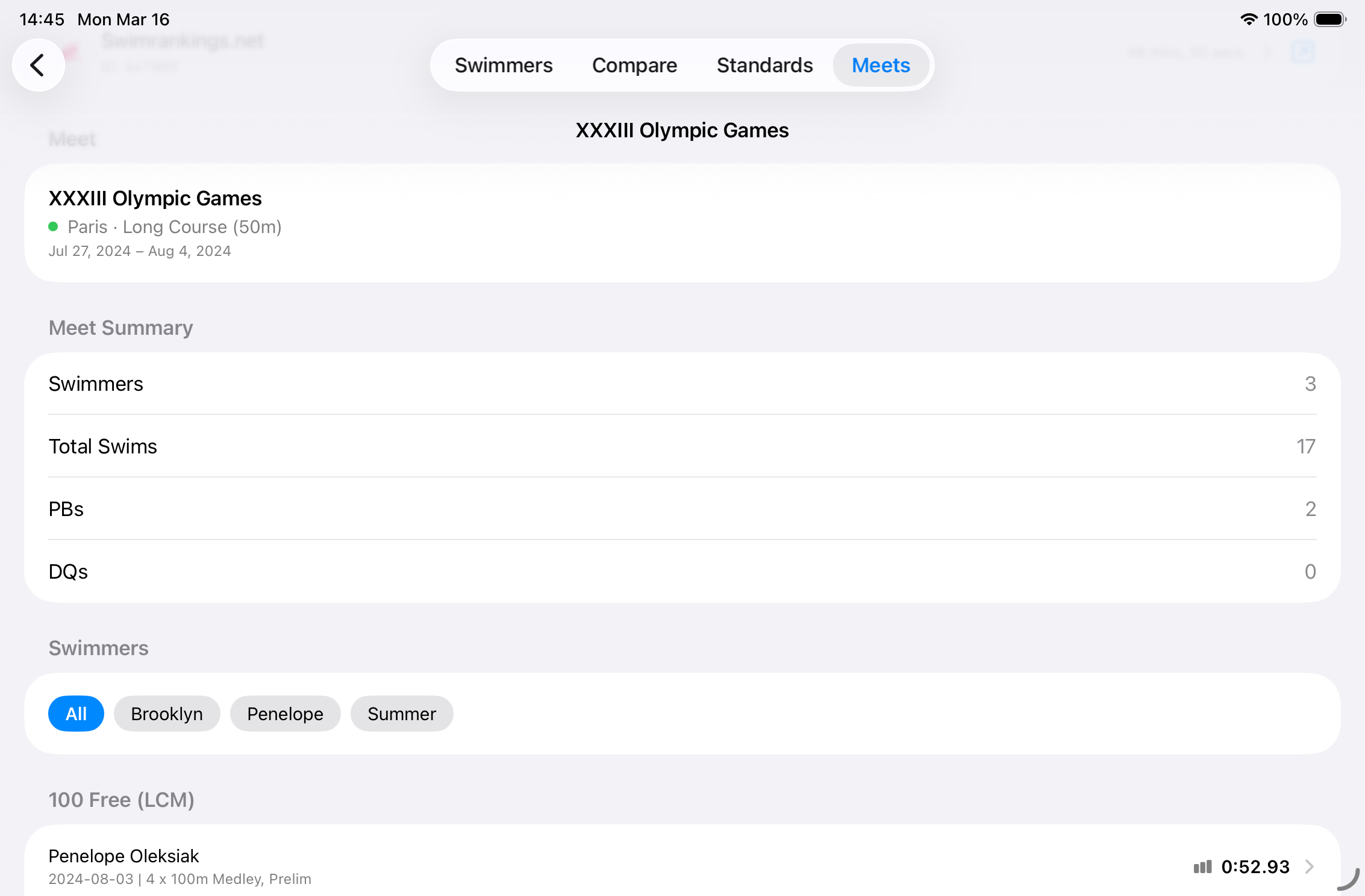
Meet Detail view. Swimmer filter chips at the top let you view one swimmer’s results at a time. Events are listed with all recorded times.
Data Sources Section
Lists the external services this meet’s data came from. Each row has an external link button (↗) that opens the meet’s page on the source website.
Meet Summary Section
- Meet name, location, and date range.
- A location warning link (“Location needs review”) appears for low-confidence geocoded meets. Tap it to open the Location Edit sheet and correct the location manually.
Meet Stats Section
- Swimmer count, total swims, personal bests, and disqualifications for this meet.
Swimmer Filter Chips
When a meet includes multiple tracked swimmers, a row of horizontal chips lets you filter results to a single swimmer. The All chip shows everyone’s results together.
Event Sections
Results are grouped by event. Each time entry row shows the swimmer’s name, time, PB star (if applicable), finishing place, and DQ label. Tap any row to open the Time Entry Detail.
5.3 Locations & Geocoding
SwimDad automatically geocodes the raw location strings from meet data to obtain coordinates for the Meet Map. This process runs in the background after meets are imported.
Location Confidence
Each resolved location is assigned a confidence level:
- High — strong match, location is reliable.
- Medium — reasonable match, but may warrant a quick check.
- Low — geocoding returned a result but confidence is poor. Consider reviewing.
Reviewing Locations
Tap … → Review Locations in the Meets toolbar to open the Location Review screen. Meets with unresolved or low-confidence locations are listed here. You can manually set or correct the location for any meet.
Location Warning in Meet Detail
A meet detail page showing a location warning contains a tappable “Location needs review” link. Tapping it opens a Location Edit sheet where you can search for and select the correct location.
5.4 Merging Meets
Sometimes the same competition is imported from multiple services with slightly different names or identifiers, creating duplicate meet records. Use … → Merge Meets to combine them.

The Merge Meets sheet. Select the duplicate meets and confirm to combine their records.
6. Settings
Access Settings by tapping the gear icon (⚙) in the top-left corner of the Swimmers tab.
6.1 Managing Services
Services are external data sources SwimDad connects to. The Settings screen is divided into two groups:

The Settings screen. Toggle services on or off to control which data sources SwimDad uses.
Swimmer Data
These services provide swimmer search and meet result data:
| Service | Provides |
|---|---|
| Swimrankings.net | Worldwide swimmer search, meet results, and detailed splits. Requires human verification (Cloudflare) and login. |
| Masters Swimming Ontario (MSO) | Swimmer results for Ontario Masters swimmers. |
Standard Times
These services provide qualifying time standards for competitions:
| Service | Standard Sets Provided |
|---|---|
| CNBO | Swimming New Brunswick, Swim Nova Scotia, Swimming Canada |
| RSÉQ / USPORTS | RSÉQ, U SPORTS |
| Fédération de natation du Québec (FNQ) | FNQ Provincial, Invitational, Mini Coupe |
Under each standard-times service, the individual standard sets provided are listed with their validity dates (e.g., Sep 2025 – Aug 2026).
Enabling and Disabling Services
Toggle the switch next to any service to enable or disable it. Disabled services are not searched when adding swimmers, not used to fetch times, and their standard sets are not available in the Standards tab. Your preference is saved automatically.
6.2 Swimrankings Verification
When Swimrankings.net is enabled, a Configure link appears below its toggle. Tap it to open the Swimrankings settings screen.

Swimrankings Settings. The Verification section shows whether the current Cloudflare clearance is valid and when it expires.
Verification Section
Swimrankings.net uses Cloudflare to prevent automated access. Before the app can search for swimmers or fetch times, you must complete a one-time human verification.
- Status indicator — shows Verified (green ✓) or Verification Required (orange ⚠).
- Expiration date — verification cookies are valid for a limited period (typically several weeks). The expiry date is shown when verified.
- Verify Now — appears when not verified. Tap to open the Cloudflare challenge web view and complete verification.
- Re-verify — appears when already verified. Use this to manually refresh the verification cookies before they expire.
Debug Info Section
This section is intended for troubleshooting:
- Clear All Cookies & Storage (destructive) — removes all stored Swimrankings cookies and session data. This will require re-verification and re-login.
- Cookie Count — the number of Swimrankings cookies currently stored.
- Expires At / Time Remaining — exact expiry date and relative countdown.
- View Cookies — prints cookie details to the developer console (useful for debugging only).
7. Refreshing Data
SwimDad fetches data from external services on demand — it does not sync automatically in the background. There are several ways to trigger a refresh:
| Location | Action | Effect |
|---|---|---|
| Swimmers list | Pull-to-refresh → New meets only | Downloads any meets not yet in the database for all swimmers. |
| Swimmers list | Pull-to-refresh → Reload all meets | Wipes and re-downloads all meets for all swimmers. |
| Swimmer Profile | Pull-to-refresh | Downloads new meets for this swimmer only. |
| Swimmer Profile menu | Reload All Times | Wipes and re-downloads all meets for this swimmer only. |
| All Times screen | Pull-to-refresh | Downloads new meets for this swimmer. |
| Standards tab | Pull-to-refresh | Re-downloads the currently selected standard set. |
Progress Indicator
While data is being fetched, a progress overlay appears on the relevant screen. For large imports, a linear progress bar shows how many meets have been processed. The spinner in the swimmer list row indicates which swimmer is currently being refreshed.
Interrupted Refresh
If a refresh requires you to log in or complete a Cloudflare verification, the loading indicator pauses and the appropriate prompt appears automatically. Once you complete the prompt, the refresh resumes where it left off.
8. Authentication & Verification
Swimrankings.net — Cloudflare Verification
Swimrankings.net uses Cloudflare to protect against automated access. The first time you search for swimmers or attempt to fetch times, a verification sheet appears automatically.
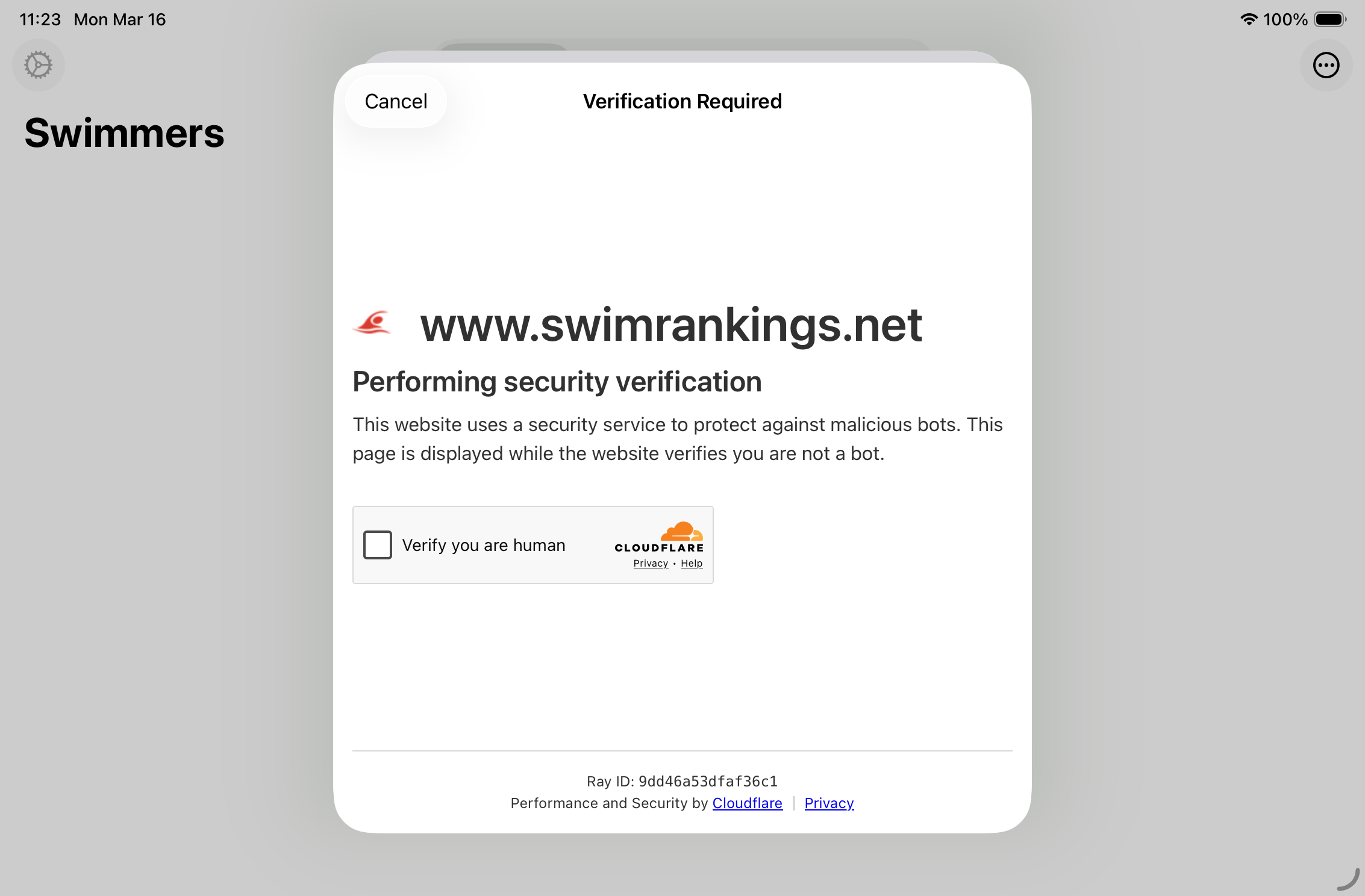
The Cloudflare verification sheet. Complete the challenge to prove you are a human user. The result is stored on your device.
- The verification sheet displays a web view of the Swimrankings.net homepage.
- Follow the on-screen instructions (typically a single checkbox or image challenge).
- Once complete, the verification cookies are stored on your device and reused for future sessions — you will not need to re-verify for several weeks.
- If verification has expired, the sheet reappears automatically on the next search or time fetch.
Swimrankings.net — Login
Accessing detailed athlete pages on Swimrankings.net requires a free user account. After Cloudflare verification, a login sheet may appear asking for your Swimrankings credentials.

The Swimrankings login sheet. Enter your Swimrankings.net account email and password.
- Enter your registered email address and password.
- Your session is maintained via a secure session cookie. You will not typically need to log in again until the session expires.
- To log out and clear all session data, go to Settings → Configure (Swimrankings) → Clear All Cookies & Storage.
9. File Formats
The .sdad Format
SwimDad uses its own .sdad file format for all import and export operations. A .sdad file can contain:
- Swimmer profiles (name, birth date, club, country)
- All associated time entries, meet data, and splits
- Qualifying standard sets
- Location and pool information
Files can be shared via AirDrop, Mail, iCloud Drive, or any other iOS share destination. To open a .sdad file from another app or the Files app, use Share → SwimDad or Open in SwimDad.
.sdad files are ideal for transferring your full database to a new device, sharing data with a coach, or making a manual backup.10. Tips & Best Practices
Keep your Swimrankings verification current
Check the Swimrankings Settings screen periodically to see when your verification cookies expire. Re-verifying before they expire avoids unexpected interruptions during a refresh.
Use “New meets only” for routine refreshes
The Reload all meets option is significantly slower and more network-intensive than New meets only. Reserve it for situations where you believe local data is corrupted or missing.
Assign default standard sets to each swimmer
Open Edit Swimmer and set a Default Standard for each swimmer. This standard will be pre-selected when viewing charts and comparisons for that swimmer, saving time.
Add a birth date for accurate age-group calculations
If a swimmer’s full date of birth is known, enable Has birth date in Edit Swimmer and set the exact date. This ensures the app calculates the correct age group for standards comparisons and charts.
Review low-confidence meet locations
After importing a large batch of meets, tap … → Review Locations in the Meets tab to quickly correct any locations that were not geocoded accurately. Accurate locations improve the Meet Map view.
Export regularly as a backup
Export your complete swimmer roster from the Swimmers tab toolbar (… → Export…) and save the .sdad file to iCloud Drive or another safe location. This protects against accidental data loss.
Use the Compare tab for goal-setting
The Age Comparison mode in the Compare tab is particularly powerful for coaches: compare a swimmer’s times at age 14 with another swimmer at the same age to set realistic progression targets.
Filter charts to avoid early-season noise
Switch to Filtered mode in Progression Charts to exclude times from early-season meets, which often don’t reflect peak performance and can make the trend line harder to read.
SwimDad User Guide · © 2026 · Generated for WordPress import