
Bike Meter – turn your iPhone into a full bike computer
BikeMeter puts everything a cyclist needs on one glanceable, handlebar-friendly screen: live speed, turn-by-turn directions on your own planned routes, weather and wind at a glance, automatic pause and resume, and Apple Health workout logging — with an Apple Watch companion that buzzes you before every turn
Highlights
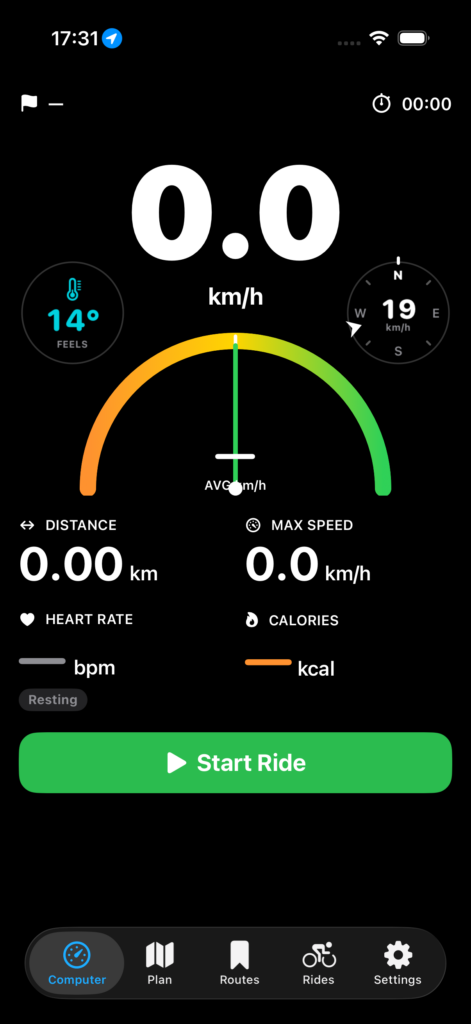
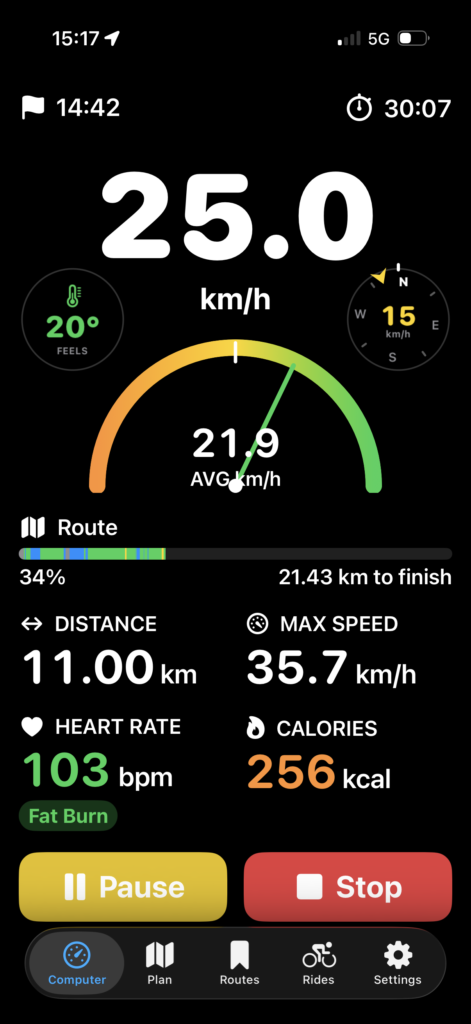
- Bike-computer display — big speed readout, average-speed gauge, distance, max speed, heart rate with effort zone, and calories. Dark theme designed for outdoor readability and low battery use.
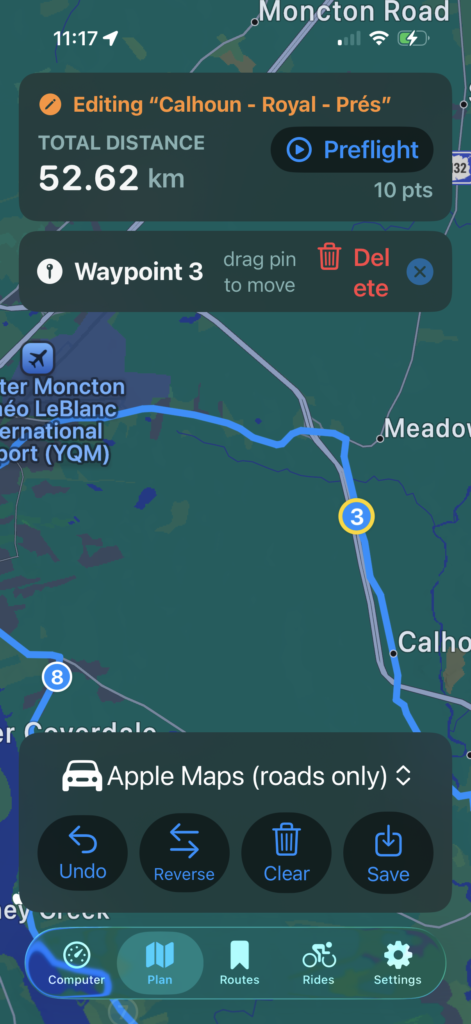
- Route planning on the map — tap to drop waypoints, drag to reshape, and let the router snap everything to roads. Choose Apple road or cycling routing, or OpenRouteService for bike-path-first routes.
- Turn-by-turn guidance — an early heads-up ~150 m before each turn and a “turn now” alert at the intersection, on screen and as a wrist buzz on Apple Watch. Went off course? BikeMeter re-routes you automatically.
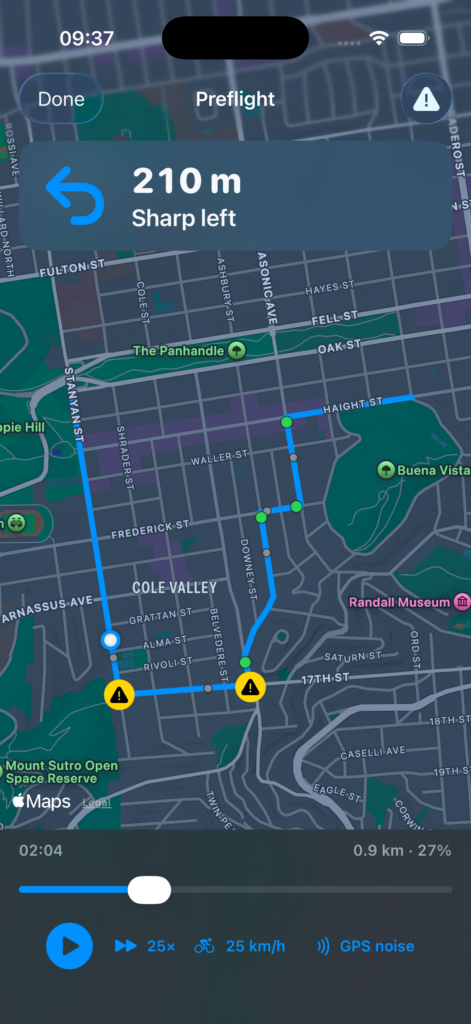
- Preflight your route — simulate the whole ride before leaving home: watch the prompts fire on the map, at your riding speed, and catch tricky spots (back-to-back turns, missed prompts) while they’re still easy to fix.
- Weather where you are — a “feels like” temperature widget color-coded for heat-stress risk, and a wind compass showing your heading plus wind direction and speed, colored by how much of it is headwind.
- Hands-free ride management — auto-pause when you stop, auto-resume when you roll, auto-laps every 5 km.
- Apple Health integration — every ride is saved as a cycling workout with route, weather, and energy; the watch owns the workout when it’s along for the ride.
Quick start
1. Set yourself up
Open Settings and pick your units (metric or imperial, Celsius or Fahrenheit), then enter your date of birth and weight — they drive heart-rate zones and calorie estimates. Optionally paste a free OpenRouteService API key to unlock bike-path-first routing.
2. Plan a route
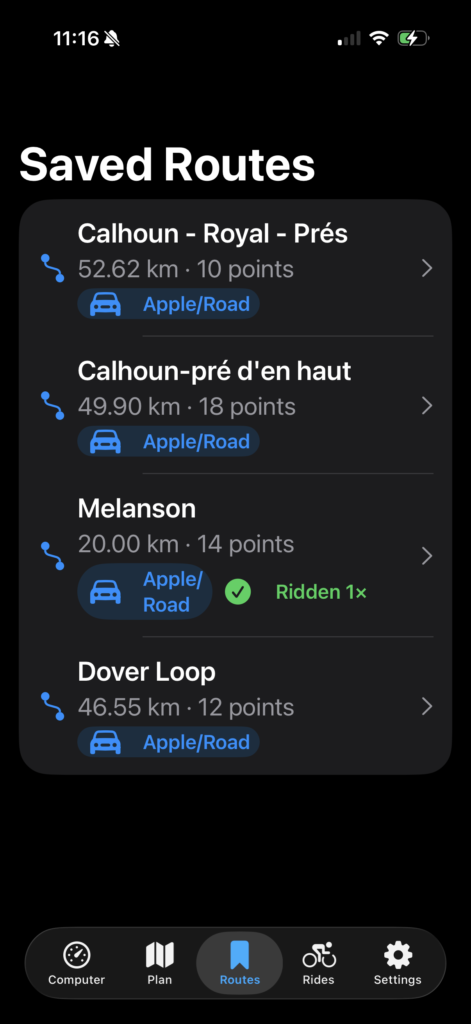
On the Plan tab, tap the map to drop waypoints — each new point is connected by road automatically. Drag a pin to move it; tap a pin to select it, then use the Delete button that appears. Use Reverse to ride the loop the other way, and Save to keep the route. Loading a saved route later shows an “Editing” badge, and Save lets you update it in place or save a copy.
3. Preflight it (optional, recommended)
Tap Preflight on the route card to simulate the ride. Play it back at up to 50× speed, scrub anywhere, and check that every turn gets its prompts. Warning pins mark spots worth a second look — adjust the waypoints and run it again.
4. Ride
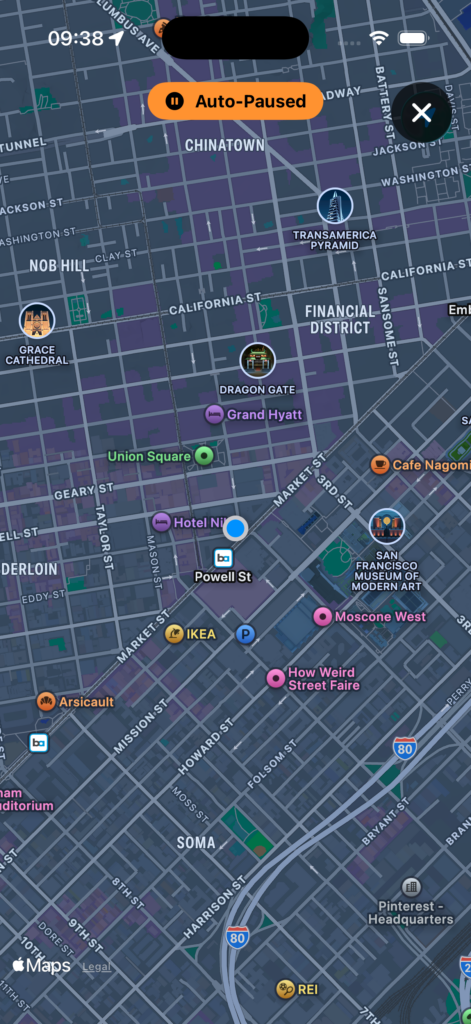
On the Computer tab, hit Start Route (or Start Ride for a free ride). Directions appear as a banner when a turn approaches, and your watch taps you twice per turn: once to prepare, once to turn. Stopping at a light pauses the ride automatically; rolling again resumes it. Double-tap anywhere to open a full-screen map — it works even while paused, so you can explore, then close and keep riding.
5. Afterwards
Your ride is saved to Apple Health as a cycling workout — route, weather, and calories included — and appears in the Rides tab. Routes remember how many times you’ve ridden them.
Requirements
- iPhone running iOS 26 or later
- Apple Watch (optional) for wrist alerts, heart rate, and watch-owned workouts
- OpenRouteService API key (optional, free) for bike-path-first routing